Features
Sidebar
- Every session under
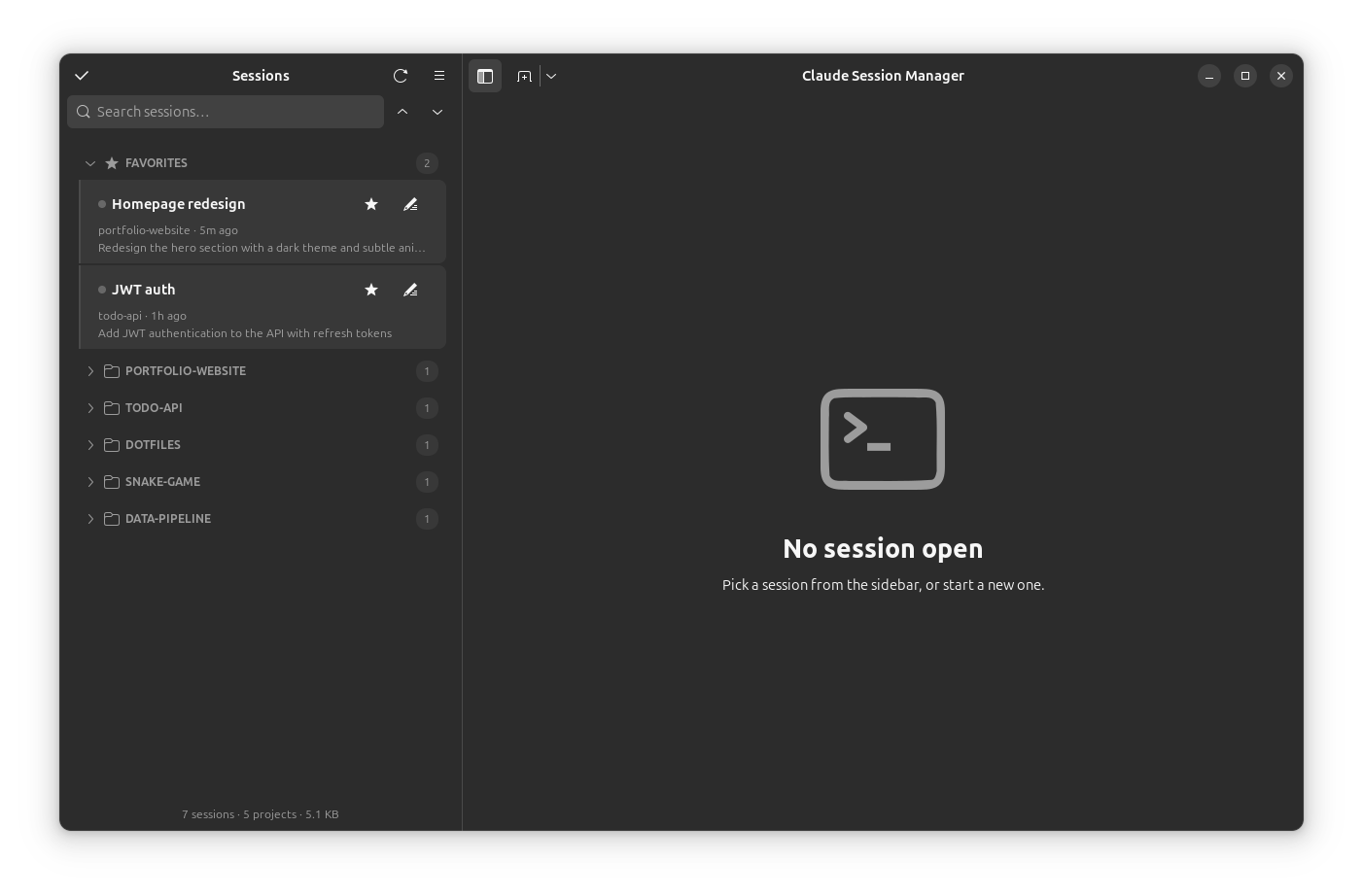
~/.claude/projects/, grouped by project with collapsible headers (and collapse-all / expand-all buttons). - A Favorites section pinned on top — star any session to move it there.
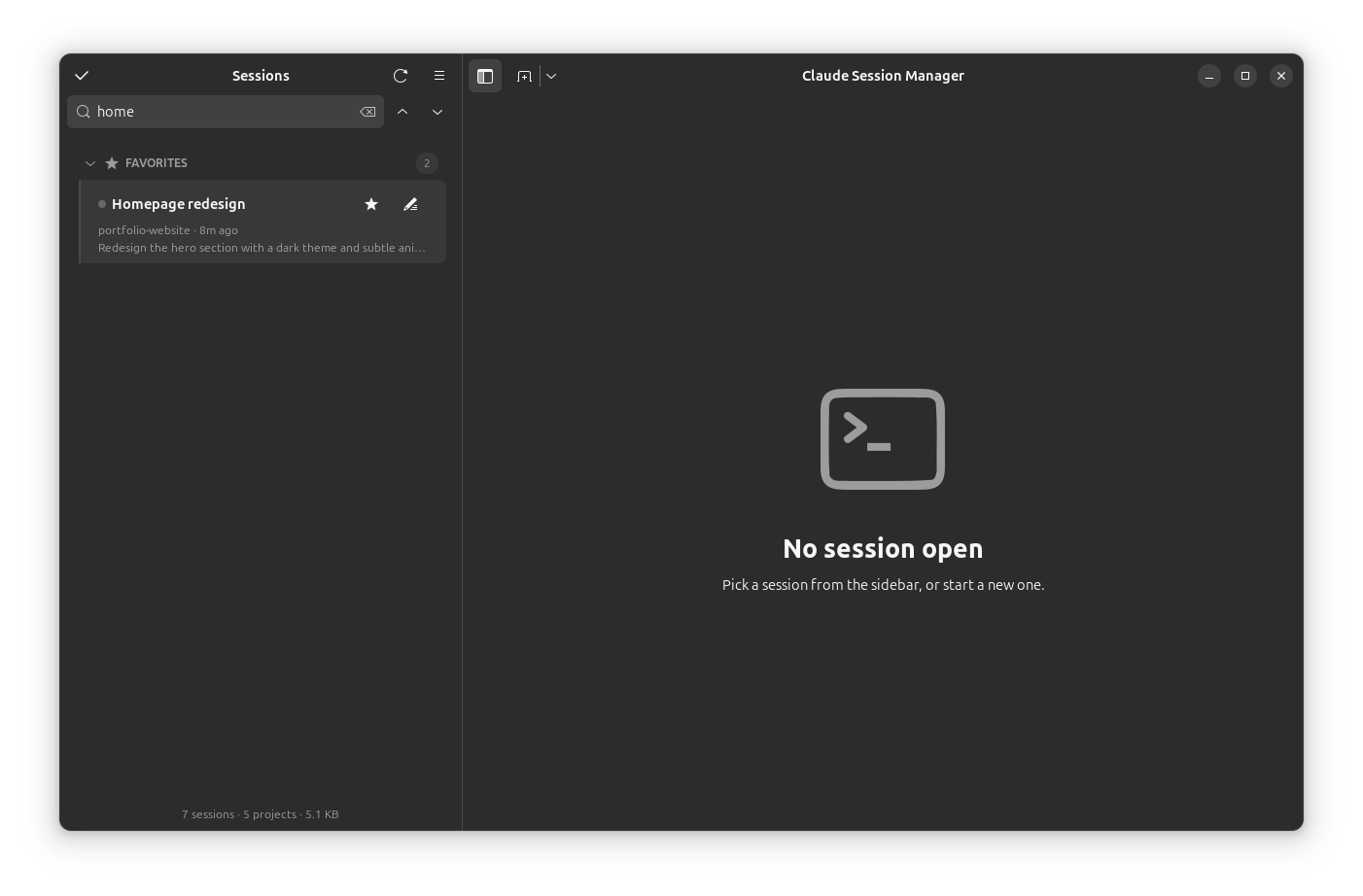
- A search box that filters by name, project, message preview, or session ID, plus a footer showing session, project, transcript-size, and open-tab counts.
- Live updates — sessions appear and reorder as they're created or written to, via a filesystem watch.
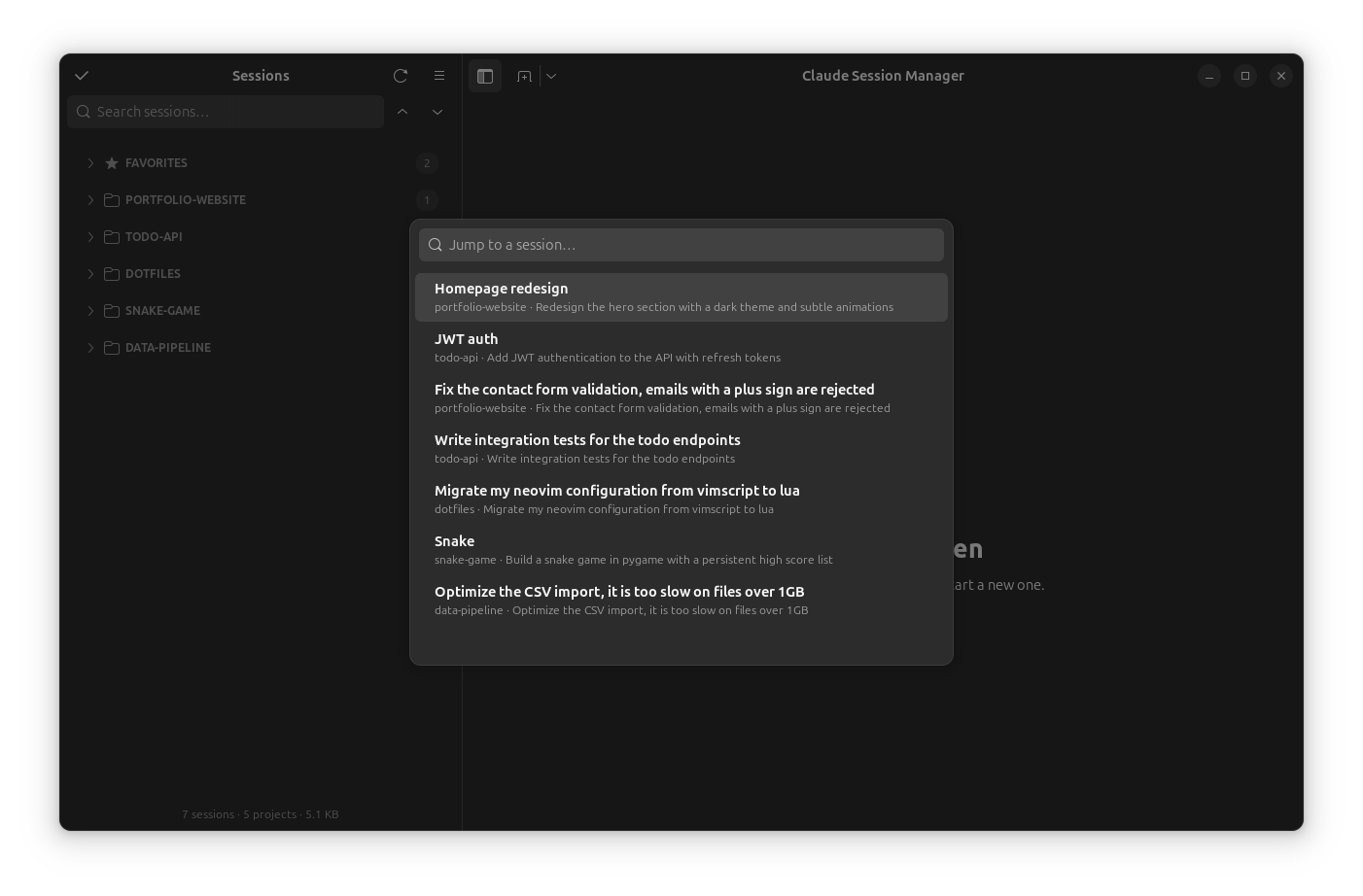
- Quick switcher (
Ctrl+Shift+K) — a type-ahead dialog to jump to any session by name, project, preview, or ID. - Status dots: green = open in a tab, blue = produced output while in the background.
- Waiting badge — an amber ? marks sessions where the agent's last message was a question awaiting your reply, so you can spot what needs you at a glance.
- Interrupted badge — a red stop icon marks sessions you stopped mid-task.
The search box filters the whole list as you type:
Quick switcher
Press Ctrl+Shift+K anywhere to fuzzy-jump to a session — arrow keys move, Enter opens, Esc closes.
Custom names, favorites & emoji
- Give any session a custom name (pencil icon).
- Star sessions to pin them to Favorites.
- Add an emoji prefix to a tab (right-click a tab → Set emoji…).
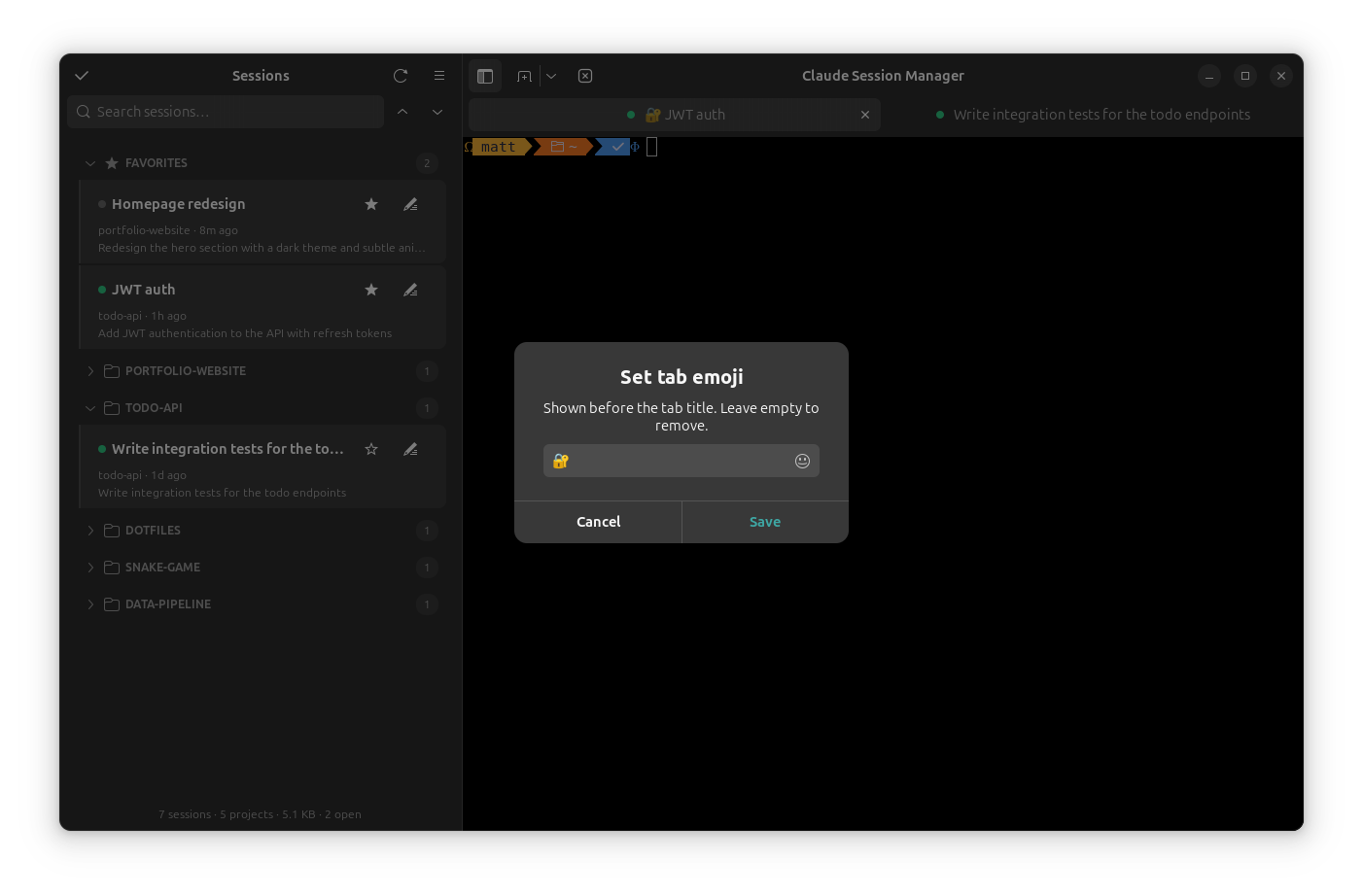
All of this is stored in ~/.config/agent-session-manager/state.json. Your agents' own session files are never modified.
Tabs & terminals
- Clicking a session opens a tab with an embedded VTE terminal running your
$SHELLwith the agent's resume command (claude --resume <id>for Claude Code) in the session's project directory. - Per-tab status dots mirror the sidebar.
- Rename tabs, copy the session ID, or fork a session (
--fork-session) from the right-click menu. - Shift+Enter inserts a newline in the agent's prompt.
- In-terminal search (
Ctrl+Shift+G) over the scrollback. - Closing a tab asks the agent to exit cleanly (Claude Code's
/exit) in the background first, rather than terminating it. - A close-all-tabs button appears when more than one tab is open.
- The New Session button starts in the last-used folder; its dropdown picks a different one. The sidebar is resizable (drag the divider) and its width is remembered.
Knowing what's happening
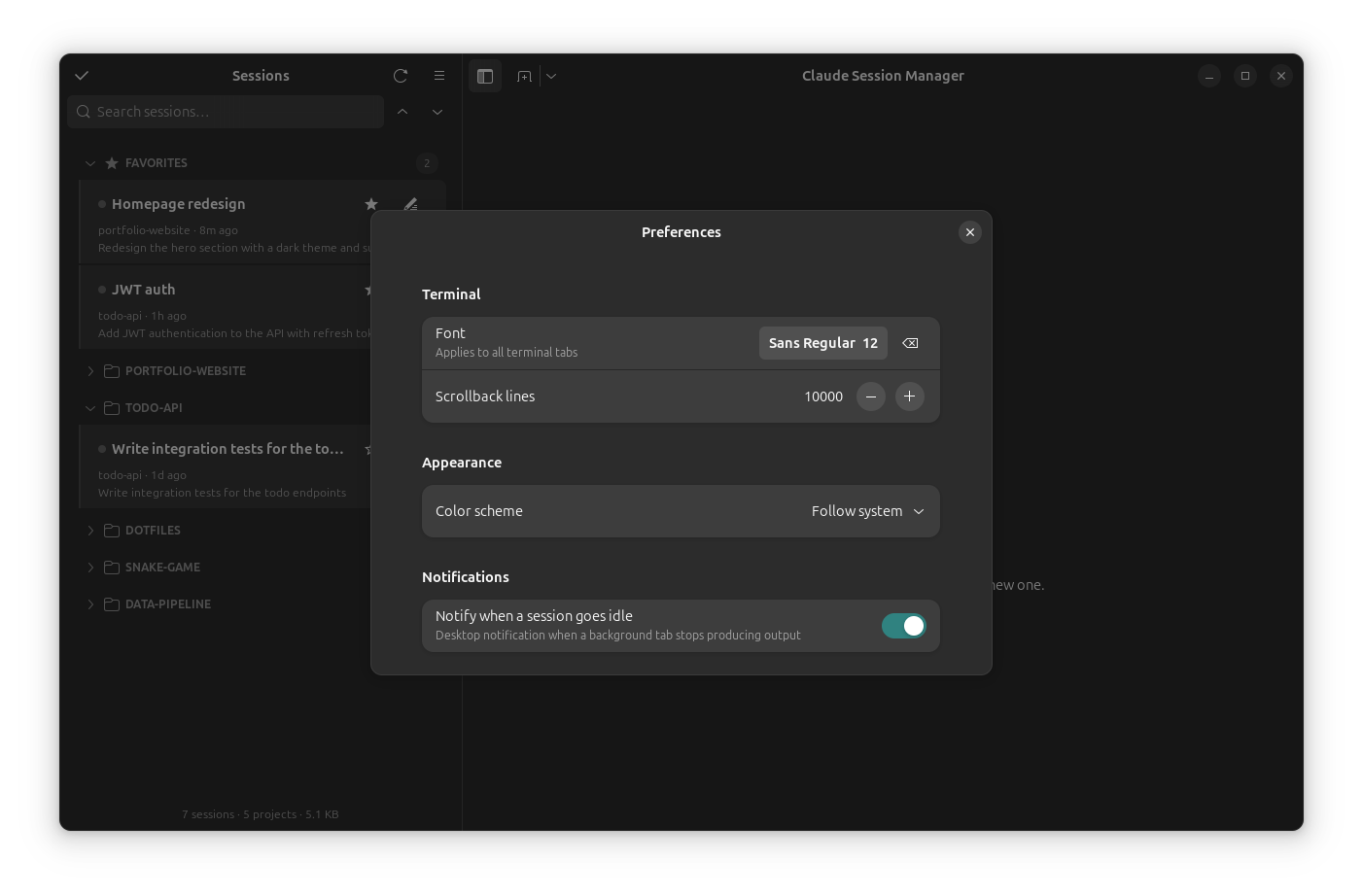
- Desktop notifications when a background session goes quiet after producing output — click to jump straight to that tab. (Toggle in Preferences.)
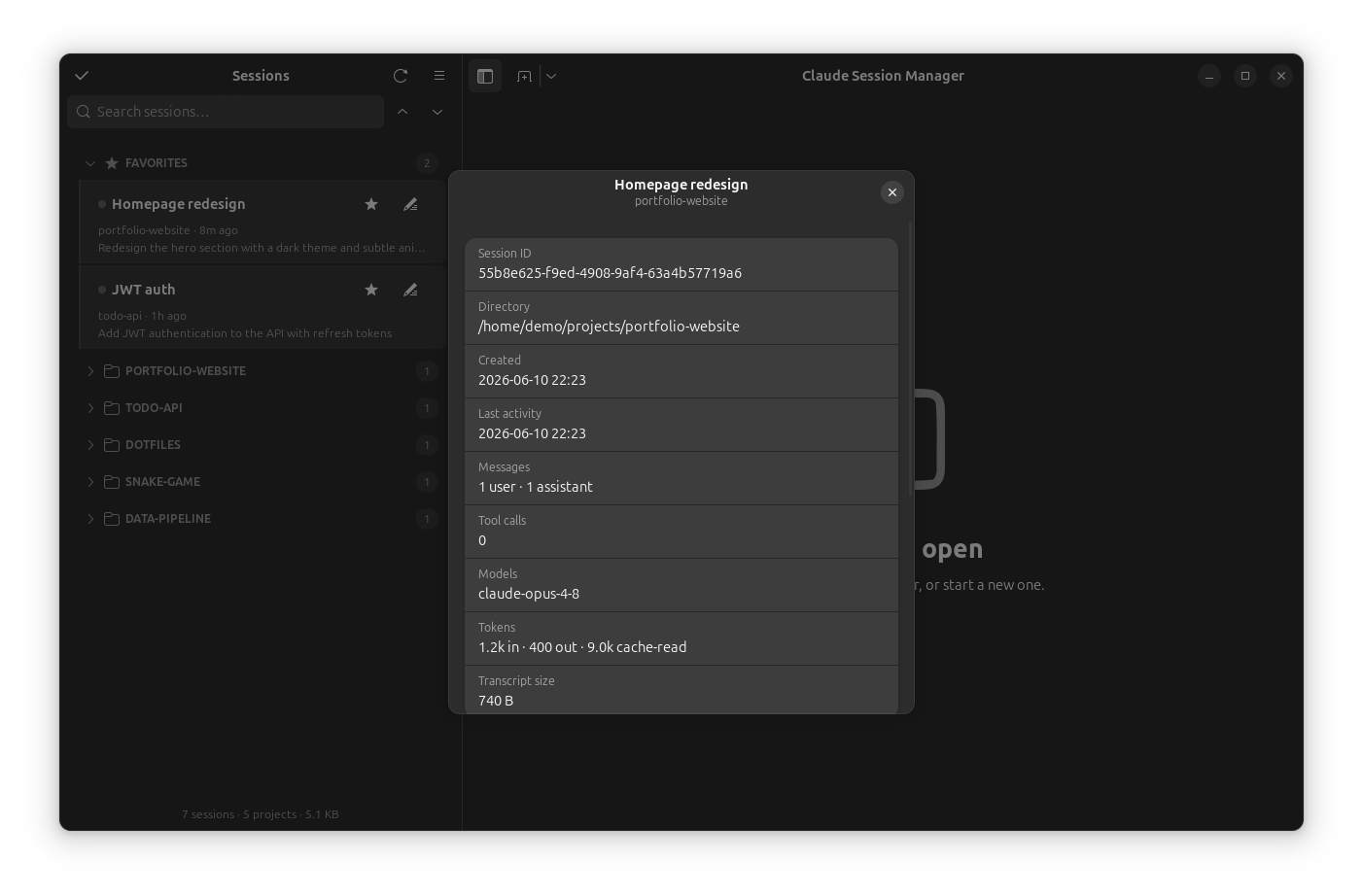
- Session details (right-click → Details…): message and tool-call counts, models used, token totals, timestamps, transcript size — plus a recent activity peek of the last messages, so you can identify a session without resuming it. It also lists the MCP servers available to the project and which ones the session actually used.
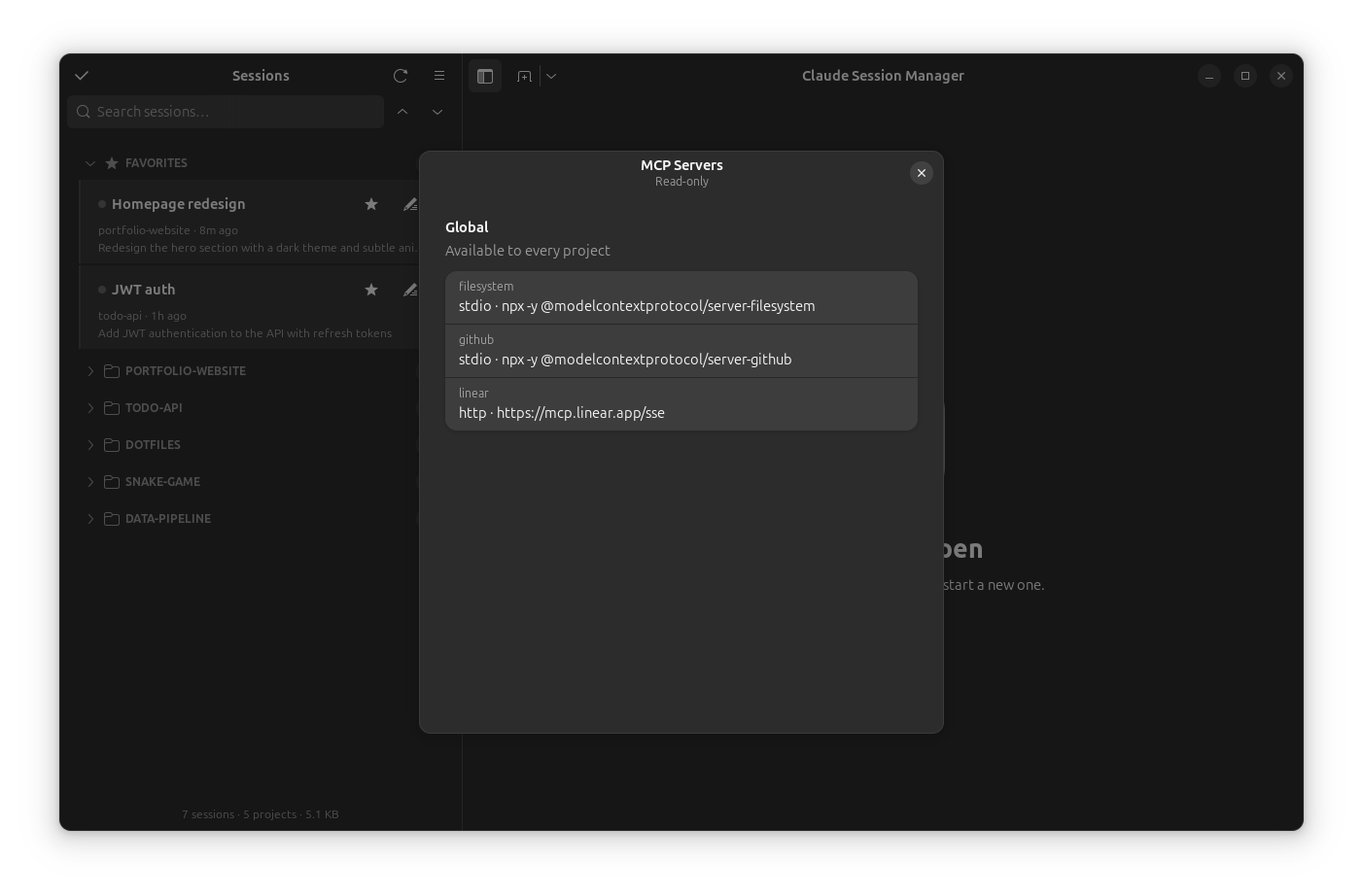
- MCP servers browser (menu → MCP servers): a read-only view of every MCP server configured in
~/.claude.json, global and per-project.
Bulk actions & housekeeping
- Select mode (checkbox button in the sidebar header) to open, star, hide, or trash many sessions at once.
- Hide sessions you don't want to see (kept on disk, toggle "Show hidden").
- Move a transcript to trash (recoverable) — the only action that touches a transcript file, and always behind a confirmation.
- Open in Ghostty to resume a session in an external Ghostty window instead of an embedded tab.
Multiple agents
Agent Session Manager discovers sessions from every supported agent installed on your machine — currently Claude Code and Cursor — and lists them in one sidebar, each row badged with a small agent icon. Resuming a session always uses its own agent (claude --resume or cursor-agent --resume), and the New Session button's menu offers one entry per installed agent. Per-agent differences are handled automatically: closing a Claude tab asks it to /exit cleanly, Cursor tabs close directly, and forking is offered only where the agent supports it.
Multiple windows
Open additional windows from the New Session button's menu or with Ctrl+Shift+N. Windows share one session list and state, so favorites, names, and live updates stay consistent across them.
Preferences
Terminal font, scrollback size, color scheme (system / light / dark), a terminal color theme (Dracula, Solarized, Gruvbox, Nord, Catppuccin, Tokyo Night, Monokai, One Dark…), the language (English, Magyar, Deutsch, Español, Français), and the idle-notification toggle — reachable from the menu or Ctrl+,.